![Ultimate Photography Bundles Compilation [December Edition]](https://creativebeacon.com/wp-content/uploads/2017/03/ultimate-lightroom-bundle-750x420.jpg)
by jamesgeorge | Dec 4, 2018 | Inspiration, Lightroom, Photoshop, Web Design
At first, we see, then we read. This is the key rule of any advertising. Whether you create a billboard, a website or a banner, you properly choose the imagery that will make the design cohesive. It’s really hard to find high-grade stock photos and all those Photoshop...
by jamesgeorge | May 20, 2018 | Articles, Photoshop, Web Design
After the launch of Adobe Photoshop, the website market has seen increase in the number of highly attractive websites. Designers started using Photoshop to build visually spectacular websites. However, there was a catch, which was how to publish the images on to a...
by jamesgeorge | Mar 30, 2018 | Articles, Photoshop
Free Mothers Days Flyer Psd It’s tough to find a free flyer template online. You can search for free flyer psd templates, but half of them aren’t easily editable, or certain parts are flattened, so you don’t have full customization options. If...
by jamesgeorge | Oct 16, 2017 | Articles, Photoshop
A Rundown of 12 Useful Photoshop Plugins When it comes to processing images, Photoshop is one of the best programs for creating beautiful end results. In addition to the tools and controls it comes equipped with, it’s also compatible with third-party plugins (which...
by jamesgeorge | Aug 21, 2017 | Photoshop, Tutorials
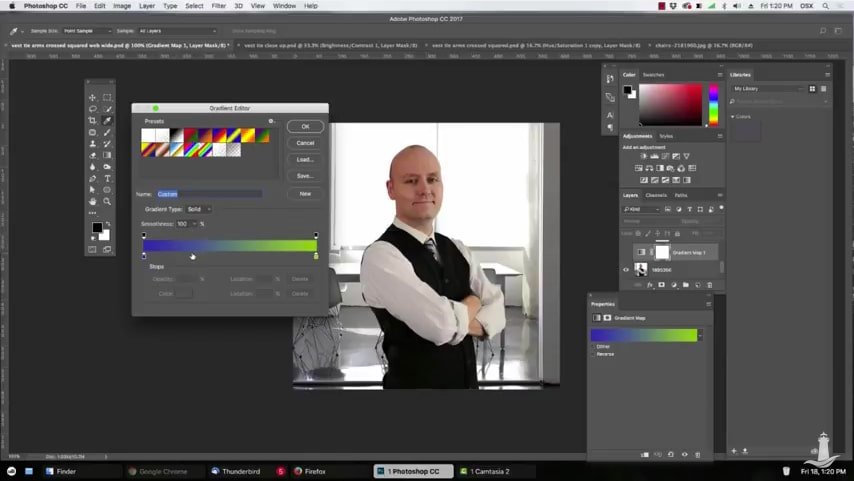
Branded Duotone Effect in Photoshop Carrying out your branding through your marketing materials is not always an easy task. Sometimes you have to unify elements to tie everything together. Not all images fit the same look and feel, which can break continuity and...
by jamesgeorge | May 1, 2017 | Articles, Photoshop, Tutorials
Removing Backgrounds in Photoshop If you’ve been using Photoshop as long as I have, then you know that there are certain tasks that you have to do with just about every image one of those tasks is removing the background from an image. Depending on the image,...

