Create a 3D Rainbow
With the addition of 3D in Photoshop, you can now create dazzling effects without using another program. In this tutorial, you’ll learn how to create a 3D rainbow from scratch, all inside of Photoshop. First, I am starting out with a black background, so that it will be easier to see what we are doing. Create a new layer, and take the elliptical marquee tool and create a series of landscape ovals. Between 5-7 will be fine, depending if you want to use the entire ROYGBIV spectrum.
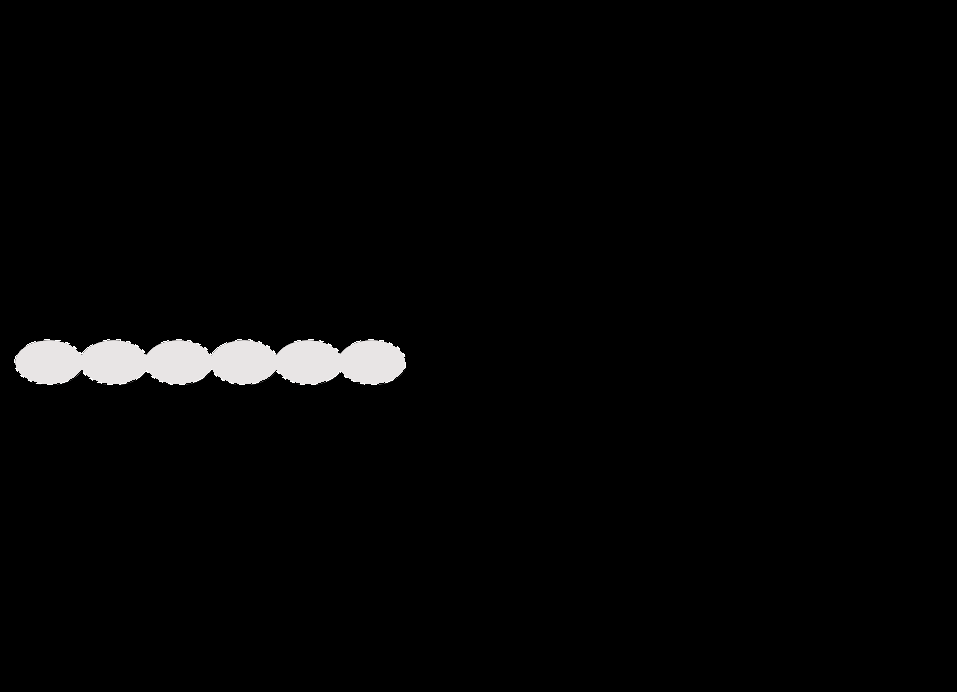

On the layer with the ovals, command click (ctrl-click on the PC) to select the contents of the layer. Then, go to 3D> Repousse> From Selection. The Repousse panel will come up and simply go to the preset that looks like a semi-circle and click okay. From here, our shape looks like a sideways rainbow. Simply use your Object Rotate Tool and click and drag to rotate the rainbow into the arching position that you would expect.


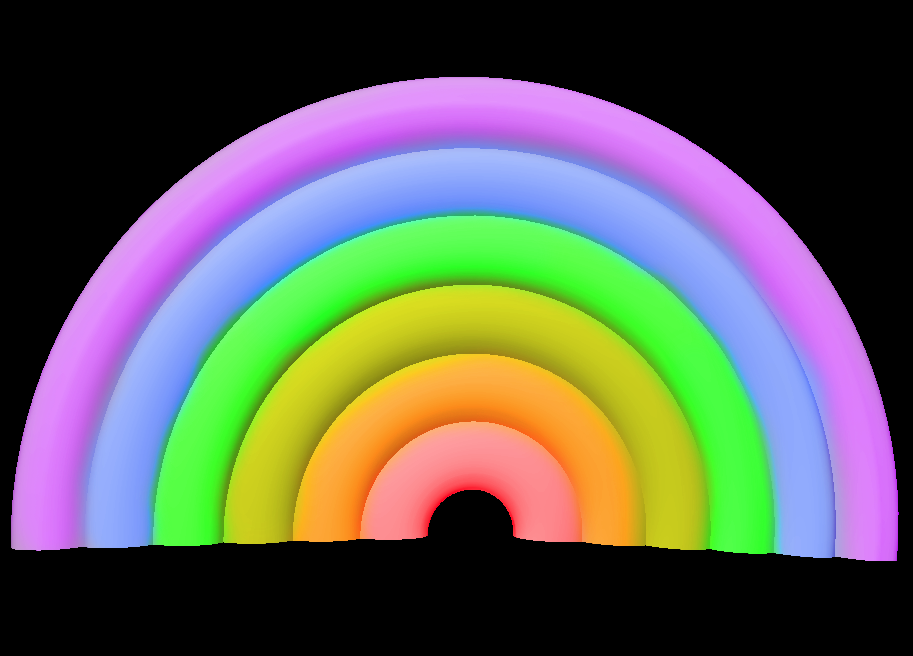
The, create a new layer above the 3D layer and change the blend mode to colorize. Now, what we are going to do here is use our brush to paint in the color spectrum in each separate arch. In mine, I did every color except indigo. Now, what we will do is go to the layers panel, and hold down alt/option and click in between our brush layer and the 3D layer to clip the colors to just the 3D rainbow. If we don’t do that, when we change the background to a sky clue, if our colors bleed outside of the boundaries of the 3D rainbow, it will color our sky as well.

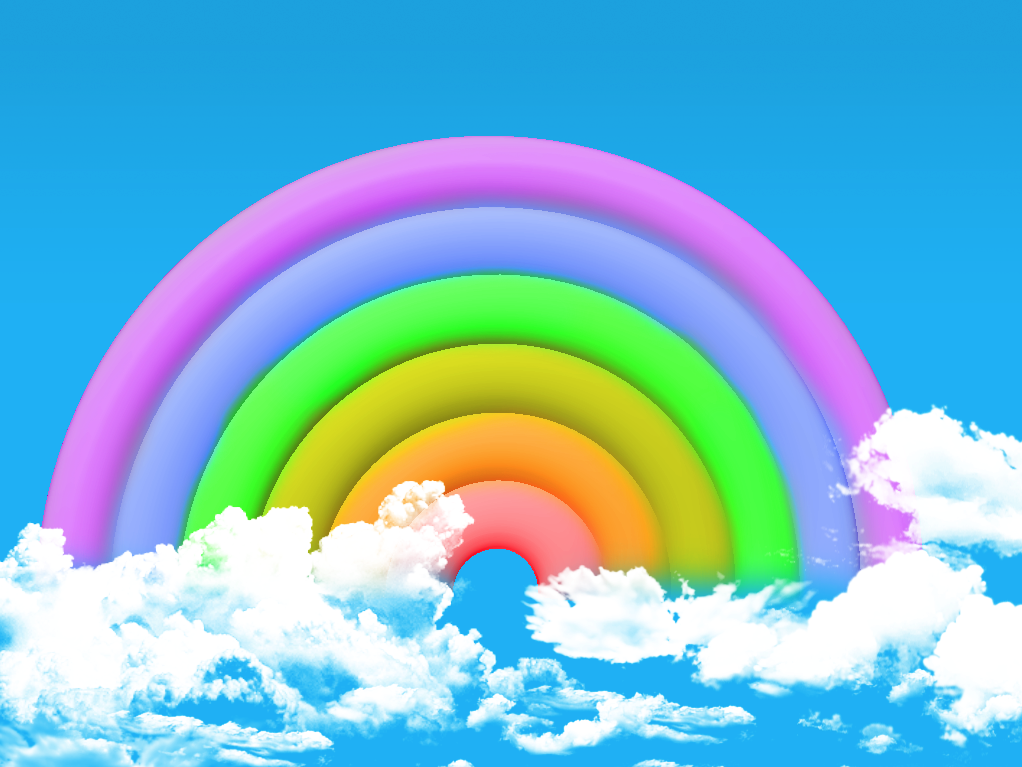
Next, we need to create some clouds around the base of the 3D rainbow. It is easy to find cloud brushes on Brusheezy.com. They are free, and most of them are hi-res brushes that you can use in print applications. Download a set that you like, install it, and use white as your color for the clouds. Use varying clouds for realism, and scatter them around the base. Go to the 3D layer, create a mask and use a soft edged brush to fade some of the 3D rainbow at the base to soften the effect.
Grab the gradient tool, pick a sky-blue to a darker sky blue, and create a blue gradient in your background layer.