Remove Background
I do a lot of image editing, especially since I work on a lot of catalogs. I have companies that send in all sorts of images, including ones that are shot professionally on a white background in a studio, and those that are shot in bad lighting and with all sorts of things going on in the background. When you are building a catalog of 1,000 items, and each one has a different image to go with it, then you want to be able to remove backgrounds from these images as quickly as possible. The method that I am going to show you isn’t the end all method, but it works most of the time for me, and with tweaking, gets better results than most others. It really depends on the situation.
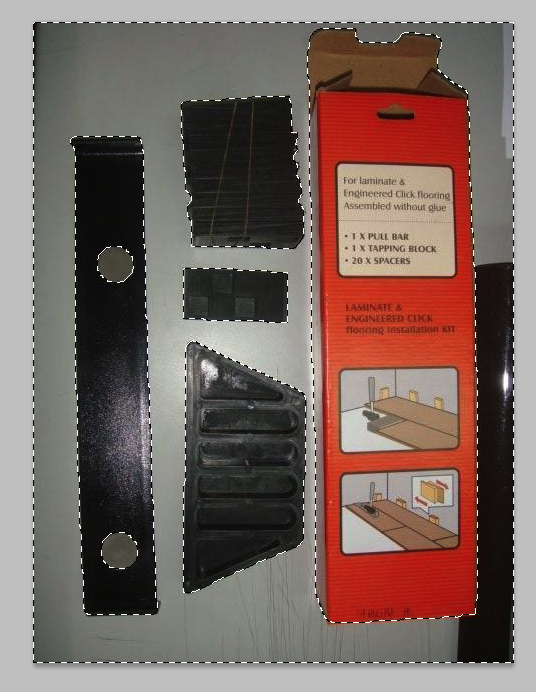
First, I use the Quick Selection Tool to either select the object or the background. If the background is a solid colored background or a gradient, then this works well. If you have a decent amount of contrast between the object and its background. You can hold shift to add to the selection and hold Alt/Option to subtract from it. Once you have your selection made, if you simply hit the delete key, then you may have some rough edges. Also, sometimes you do not end up getting every little detail that you want. Click on the Refine Edge option in your top tool bar and it brings up an option menu.
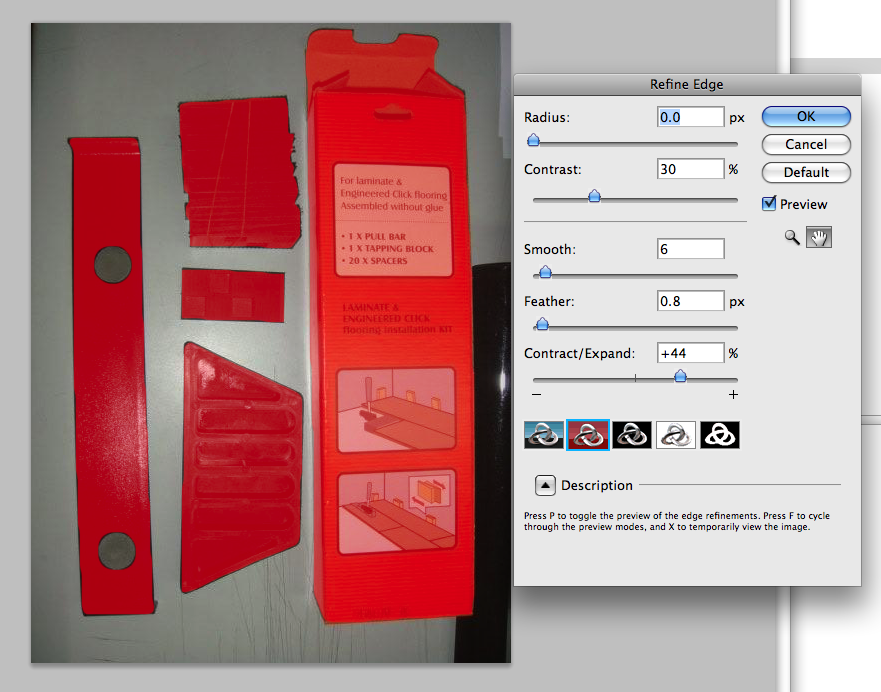
Depending on your desired results, you can adjust the sliders to adjust your selection. You can expand or contract the selection, which is great for including a few extra pixels that you may have missed in an object. Radius is used in areas that have soft transitions and fine details. This picks up small little edges that you may have missed. Contrast makes edges crisp. Feather softens the selection edges, giving you a “feathered” soft look to you image once you extract it.

There are also boxes at the bottom that give you different views, such as Quickmask Mode, which shows you in red what is being masked. When you are finished, simply click ok and you can either delete the selection, or hit the mask on your Layers Panel to mask the selection. This comes in handy when processing tons of images, because you can see exactly what is being masked, play with the sliders, and have the update renew in real time so that you can make adjustments.